
How to Start a Discussion on The Jukebox
The Jukebox feature allows our community members to start their own musical discussions.
There is no need to ask; just draft and publish these as and when it suits you to do so, as it was on the old Music Channel.
All you need is a Disqus account to sign in to start a new discussion.
The video below shows the process for drafting a discussion and also the list or card view options and the various categories and how to access them. All it takes is a couple of minutes and it is very similar to drafting a comment on Disqus itself.
Only regular community members on this site’s trusted list can start a new discussion on The Jukebox.
This is to keep out spammers, trolls and non-members of our community from opening discussions.
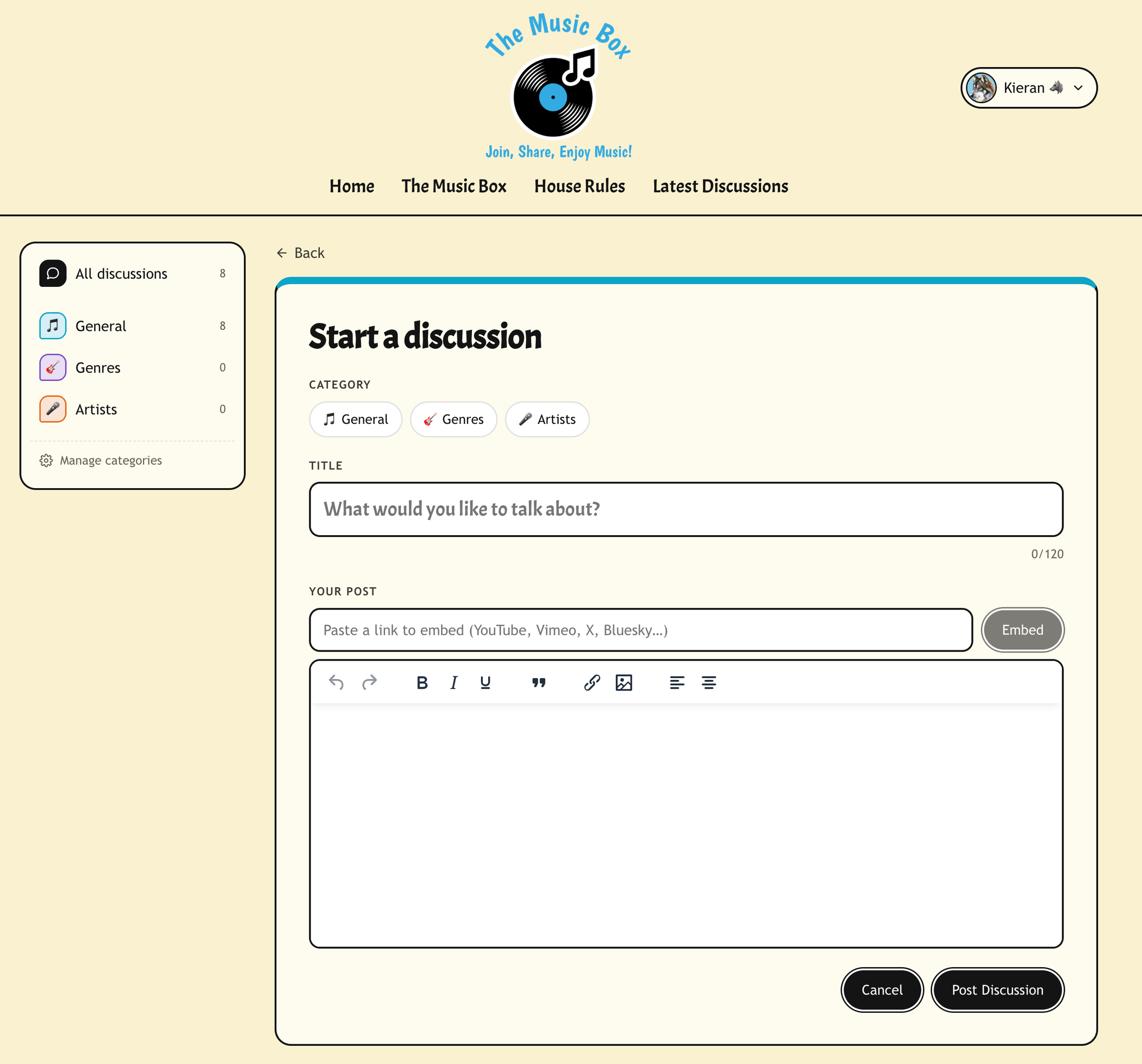
On The Jukebox, click/tap on “New discussion”
You can also start a new discussion from within the categories. Pick the category for your topic and then click/tap “New Discussion” there.
If you haven’t already signed in with Disqus at the top, Disqus will start to sign you in and ask for your permission to connect. That only happens on your first sign in. “Allow” to continue.
Once you are signed in, the blank “Start a discussion” editor will open, with your Disqus name and avatar displayed at the top.
Choose which category you wish to put your discussion in.
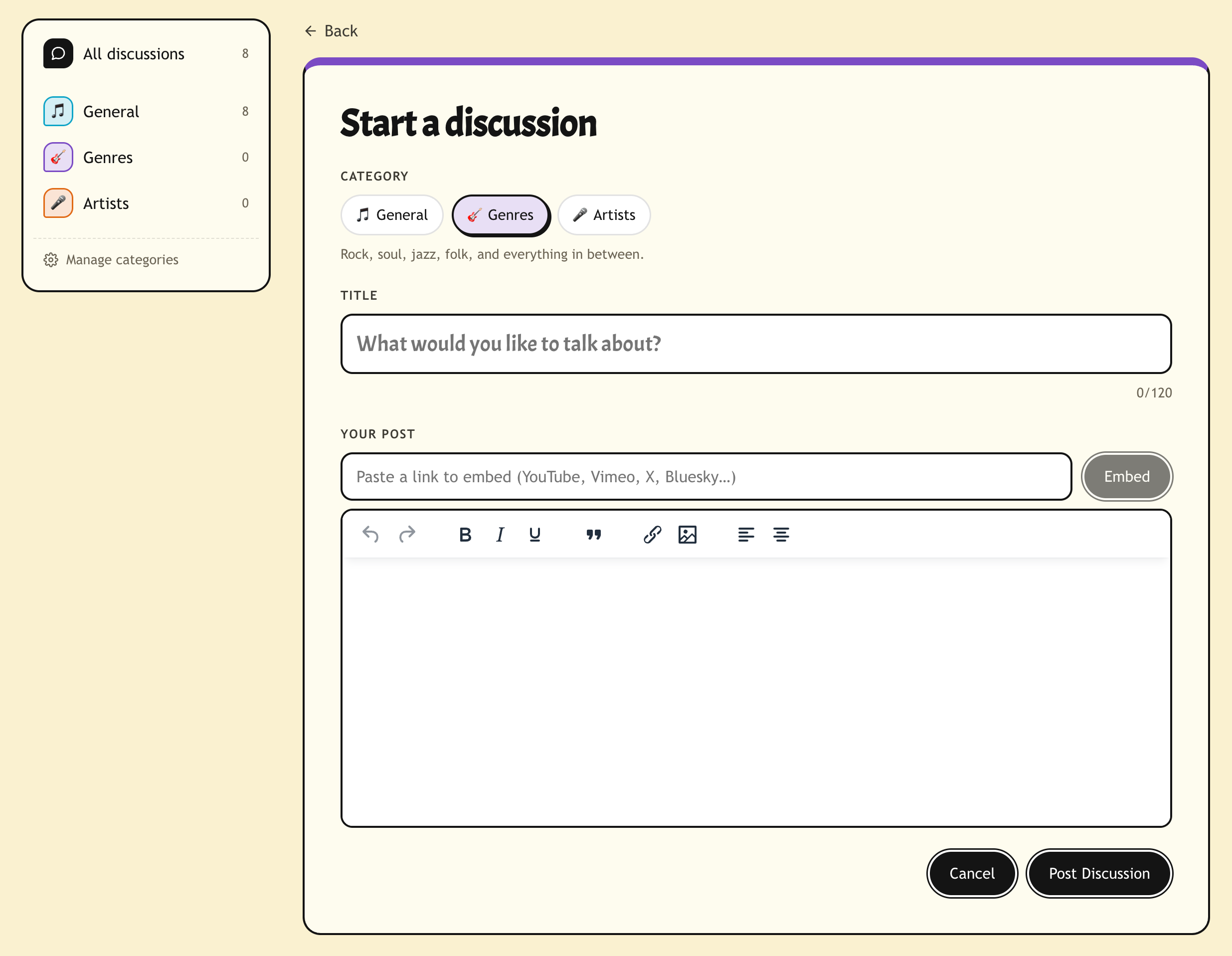
Enter the title, and then you can start drafting your discussion.
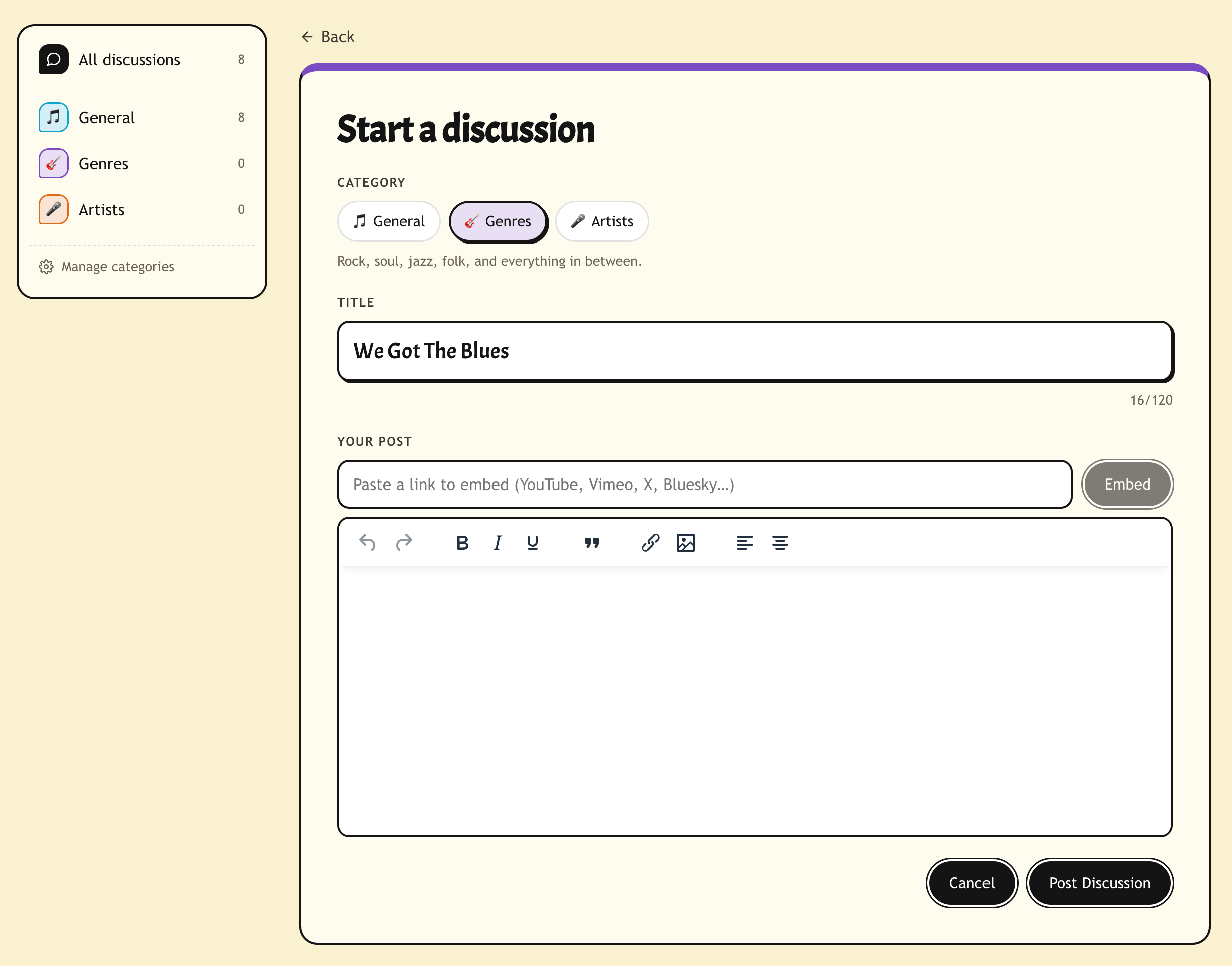
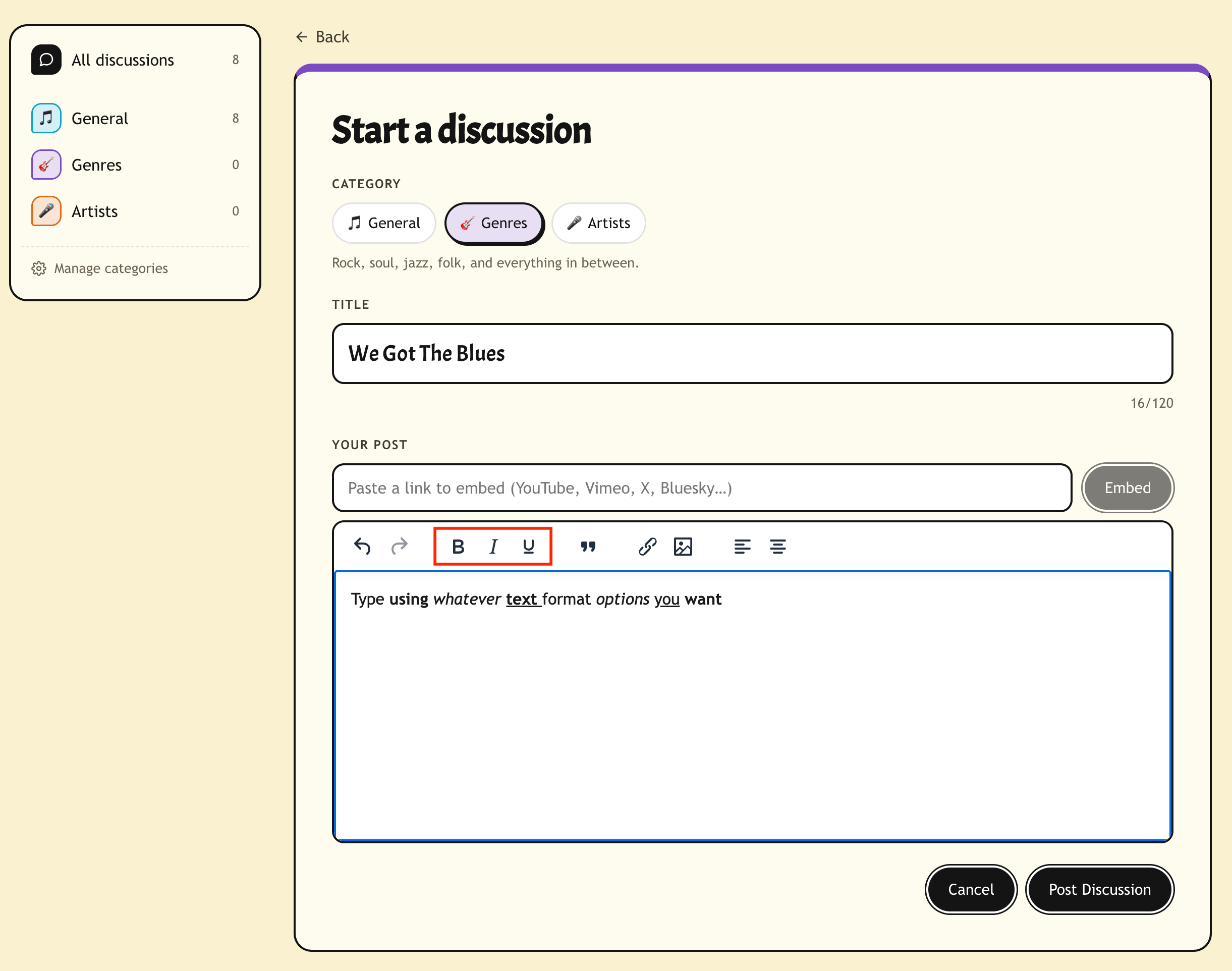
It is basically the same process as drafting a comment on Disqus - the editor is a WYSIWYG (what you see is what you get) rich text editor.
As you add text, images, videos, you will see how they will look when published.
There are undo and redo options (the curved arrows far left on the editor toolbar) for anything that you do in the editor, so any mistakes or changes you don’t like, just undo and try again.
If you close the tab, refresh the page or navigate back to the discussions list or any other page, your discussion will be saved as a draft and you can continue where you left off.
To delete everything from the draft, just click/tap Cancel.
When have finished drafting, click/tap “Post discussion” and your discussion will be live on the discussions list.
Authors get an “Edit” option on their own posts, so you can go back in and change anything you want after posting. Only mods can delete a discussion.
Below is the detailed information on using the text editor, but if you need any help at all with anything or just have a question or two, please just ask.
Entering Text
To enter text, insert the cursor where you want that and type, using any of the formatting and alignment options you want.
Embedding Videos
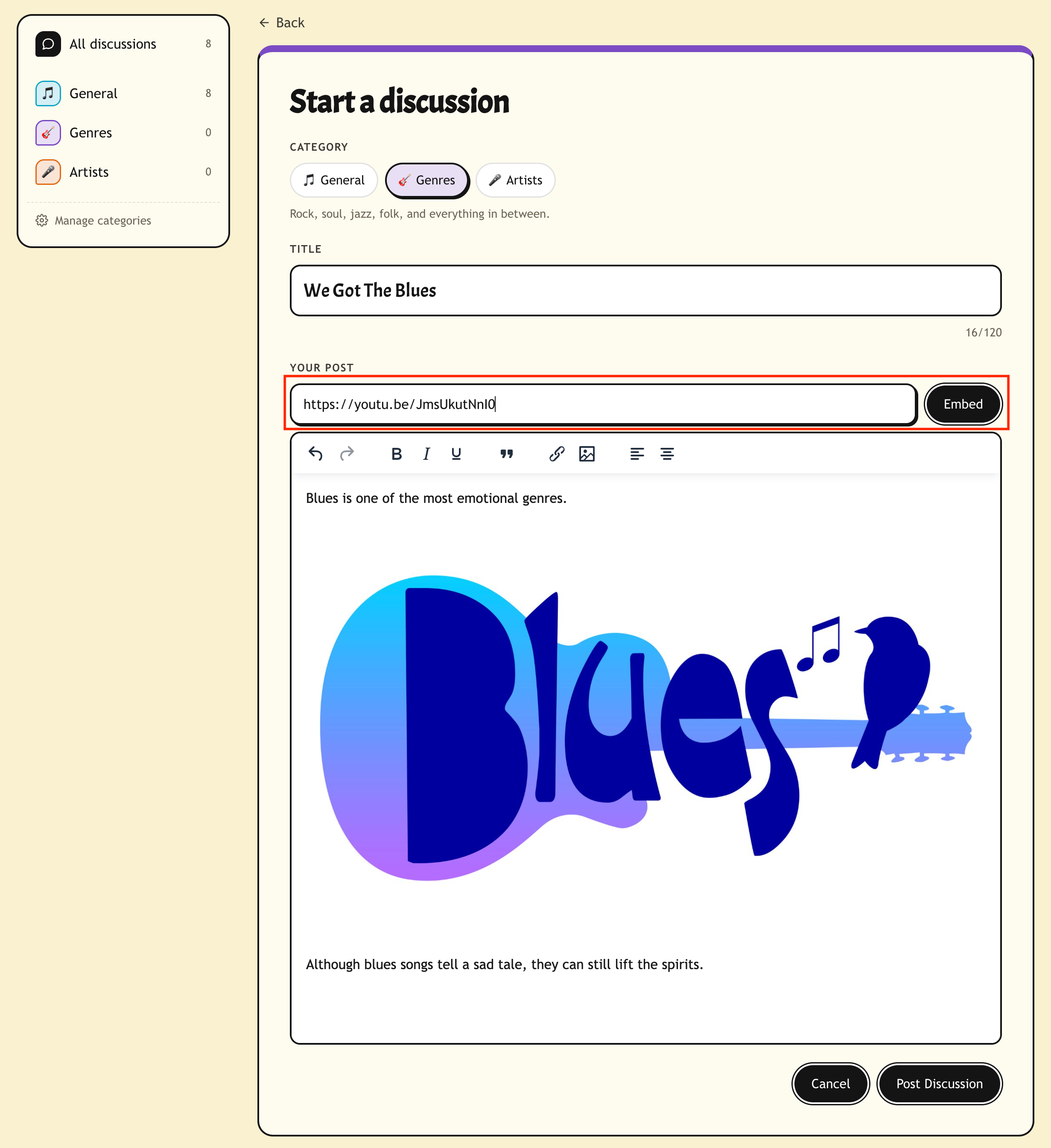
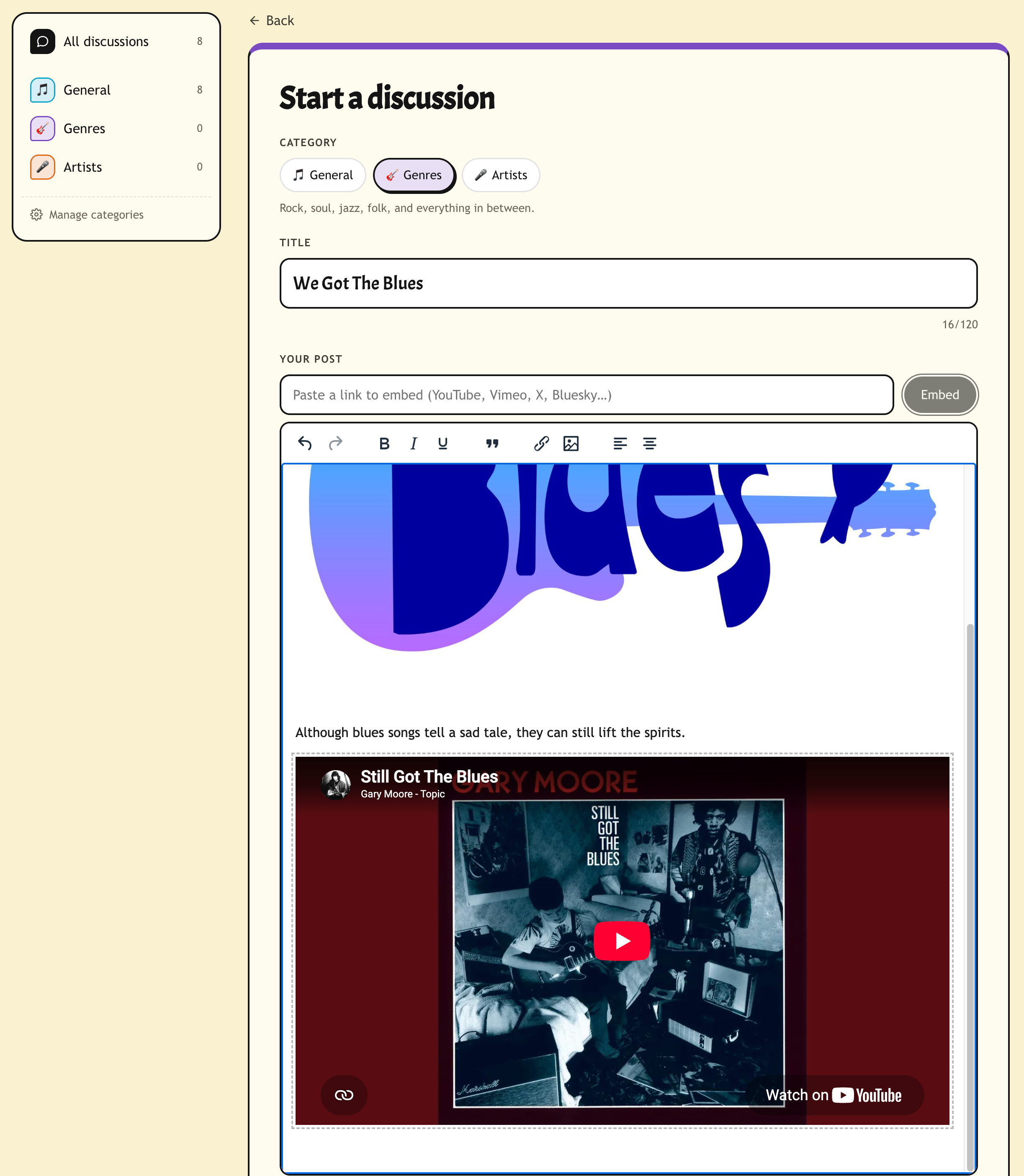
To embed YouTube videos, X posts, etc., paste the link into the video embed box, and click/tap “Embed”.
The video or post will be inserted wherever your cursor is.
Embedding Images
To embed images, you can drag and drop images directly into the editor, copy and paste, or use the image upload button, exactly as on Disqus.
Supported image formats are JPEG/JPG, PNG, GIF, WebP, SVG, and BMP.
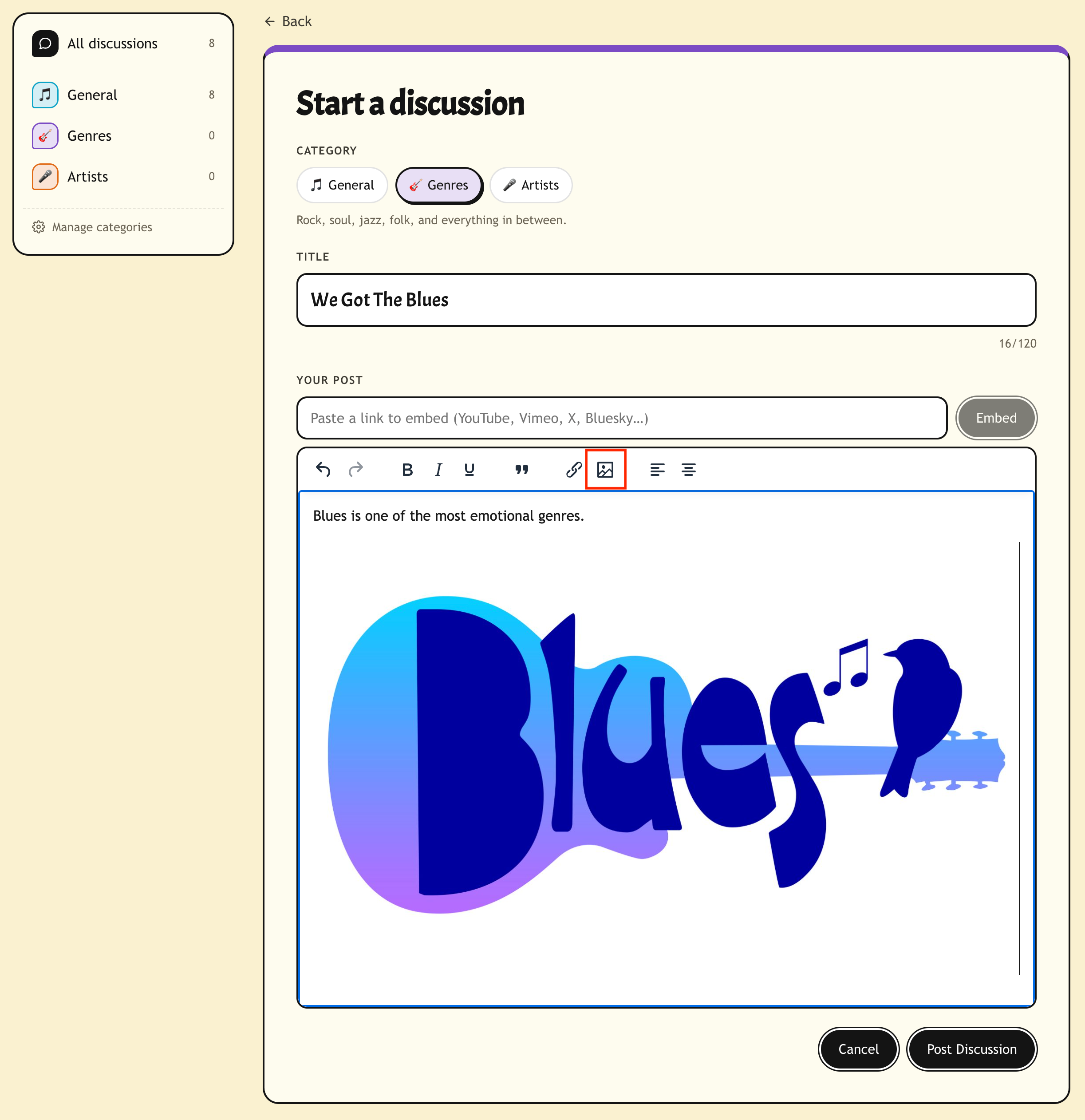
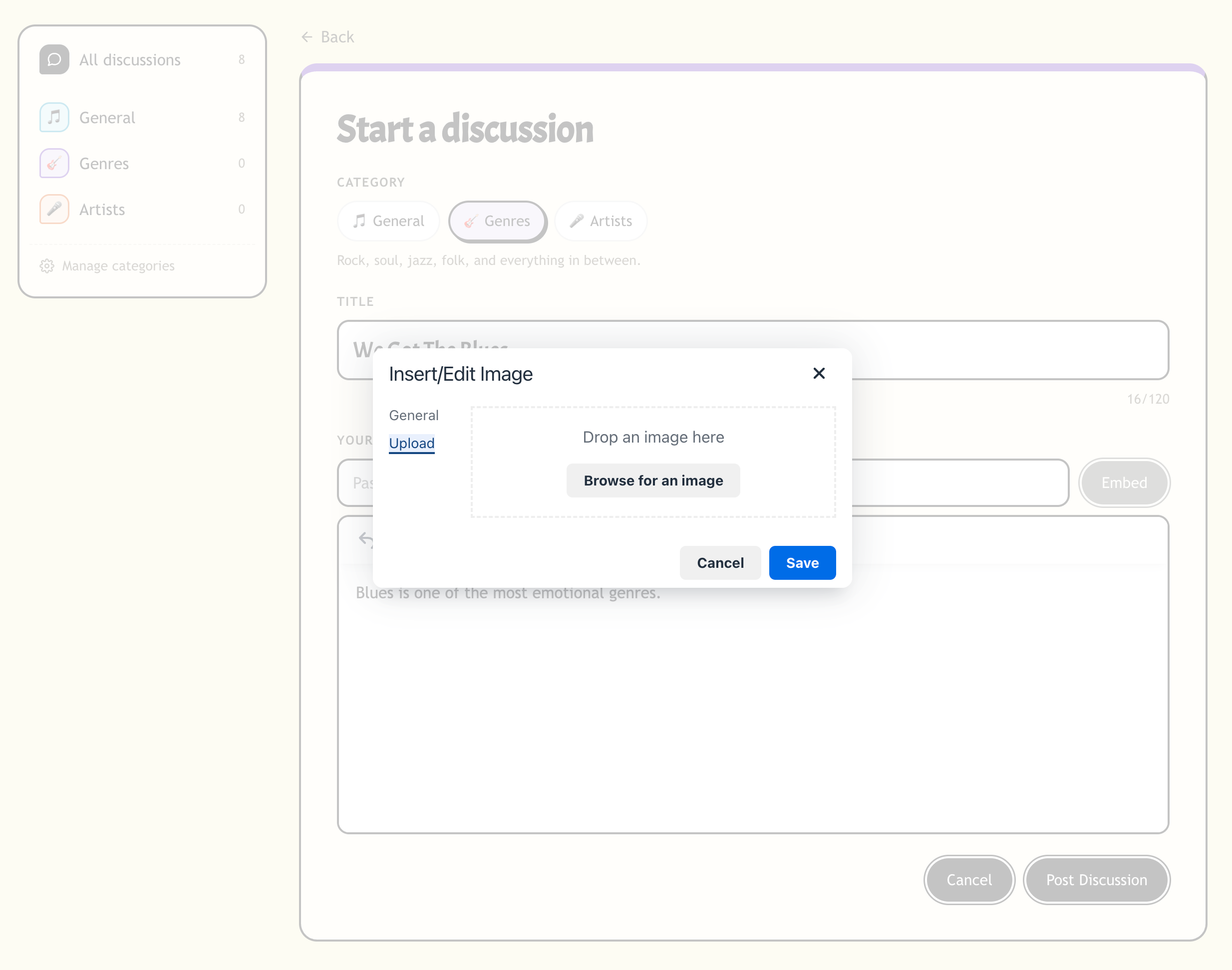
To upload images from your device, use the insert/edit image button, and select the upload tab, and then browse for an image or drop one into that box.
Save and the image will preview in the draft.
When you are happy, hit “Post Discussion” and your discussion will be live and showing on the list of discussions.
To cancel and clear the draft completely, hit “Cancel”. You will get a prompt to confirm the cancellation.
To save the draft to return to later, just close the tab or navigate away. As long as you don’t hit cancel, your draft will be saved.
Once posted, if you want to alter anything, there is an edit button available.