How to use the Latest Discussions Feature
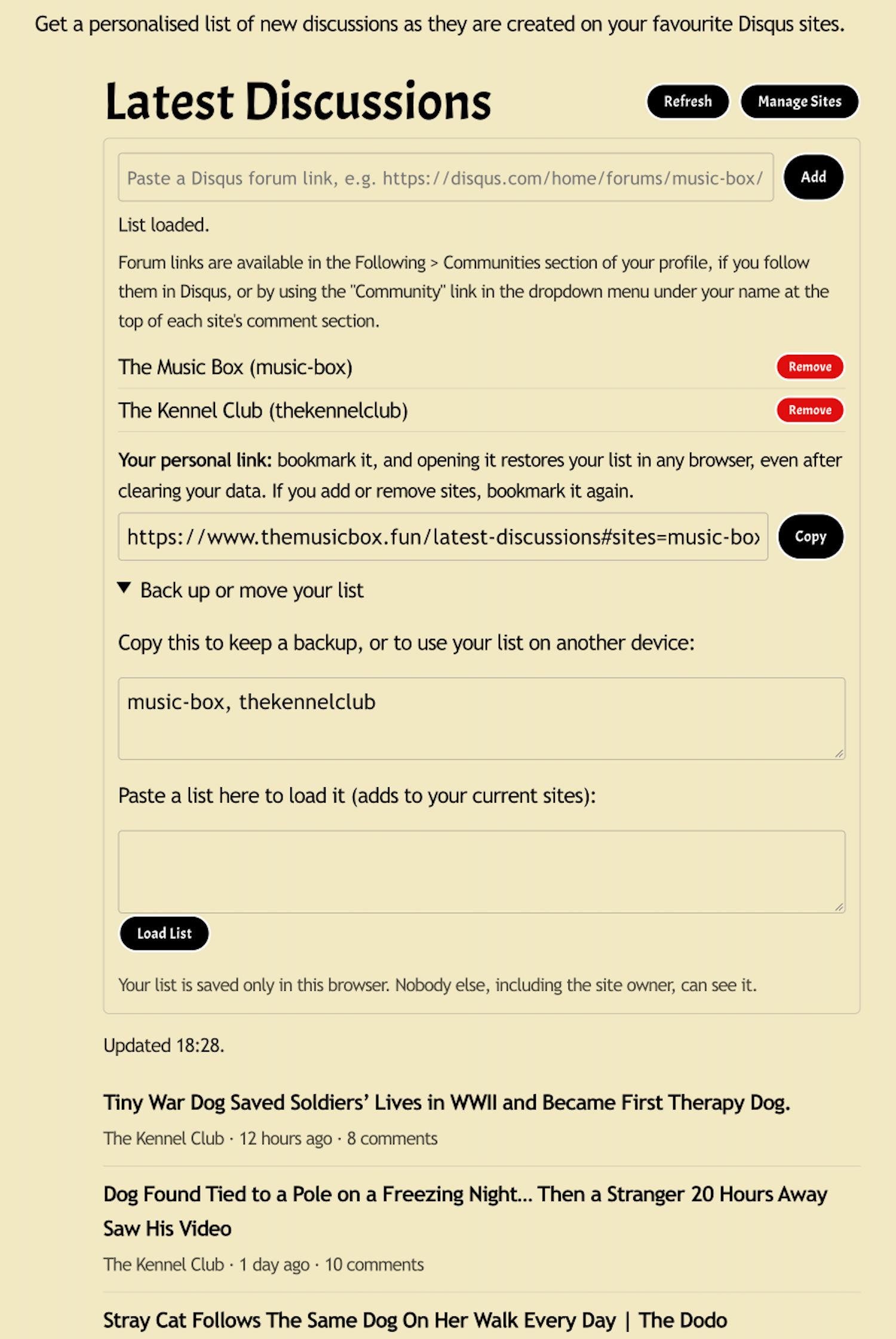
The Latest Discussions is a browser-based feature, where you can add any Disqus-powered sites you comment on or follow, so you can get a personalised list of all new discussions on those sites that updates automatically as new content is added.
Adding Disqus Sites to Your List
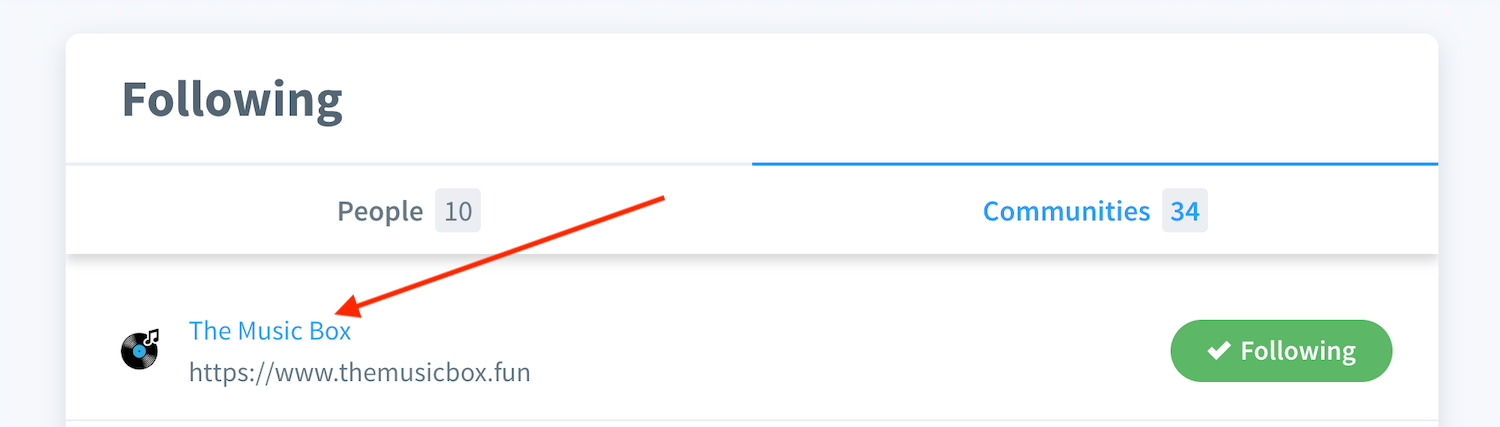
Forum links for any sites you follow through Disqus can be found in the Communities list in the Following section of your profile.
On desktop, right-click and copy the link for the site you want to add. On mobile, press and copy the link.
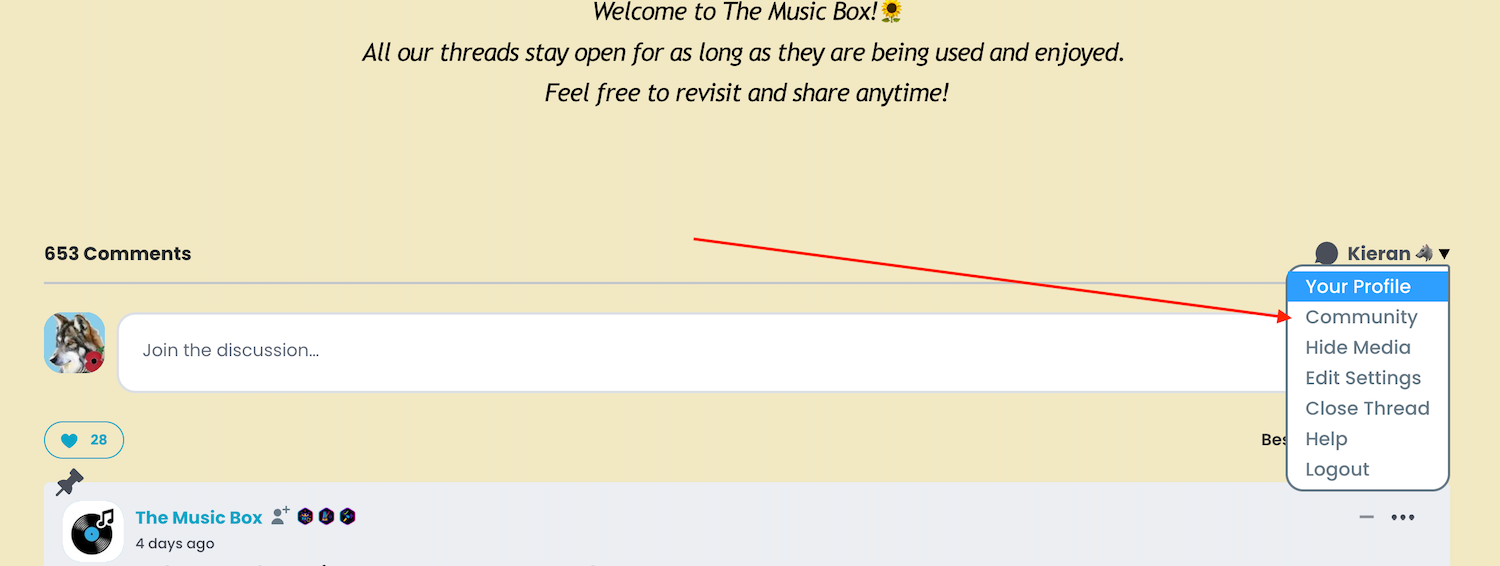
Otherwise, you can pick up the forum link for any Disqus site by clicking/tapping on the Community link in the dropdown menu at the top of the comment section of the site you would like to get latest discussions from.
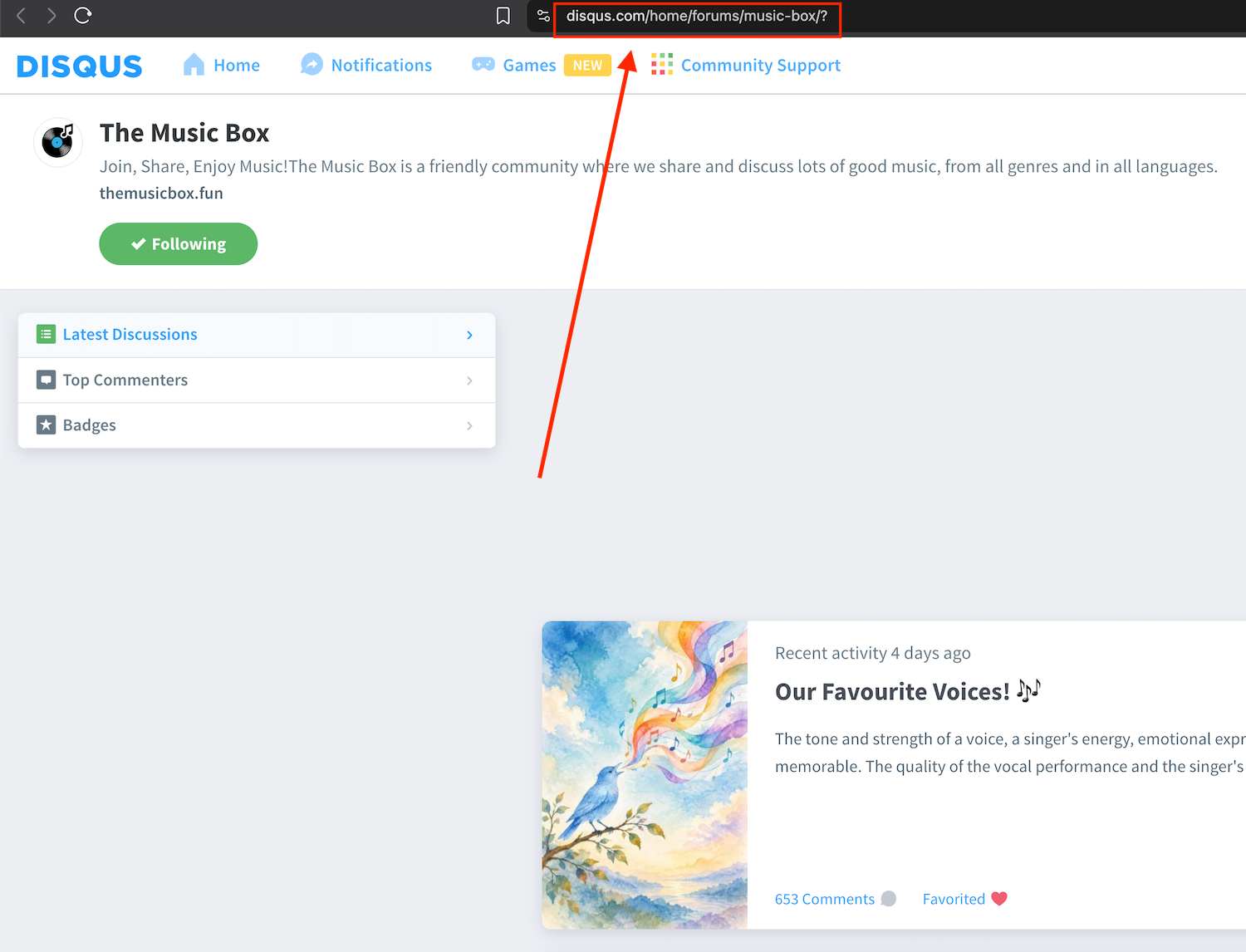
That will take you to the site's forum page, where you can copy the link from the address bar at the top.
Paste the forum link into the box and click/tap "Add".
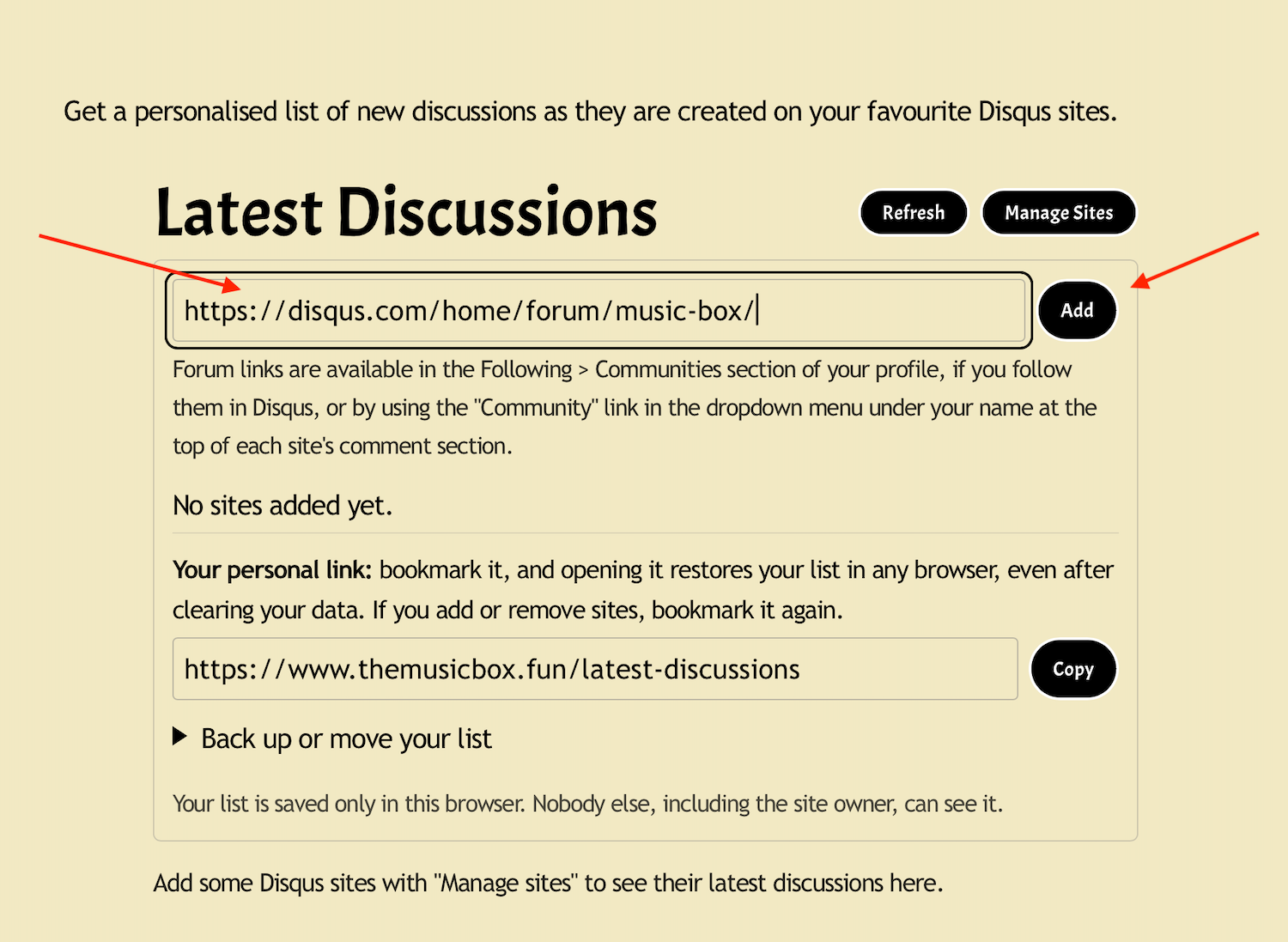
Repeat for any additional sites you want to add. You can add as many as you wish.
If you want to remove any, simply use the red remove button.
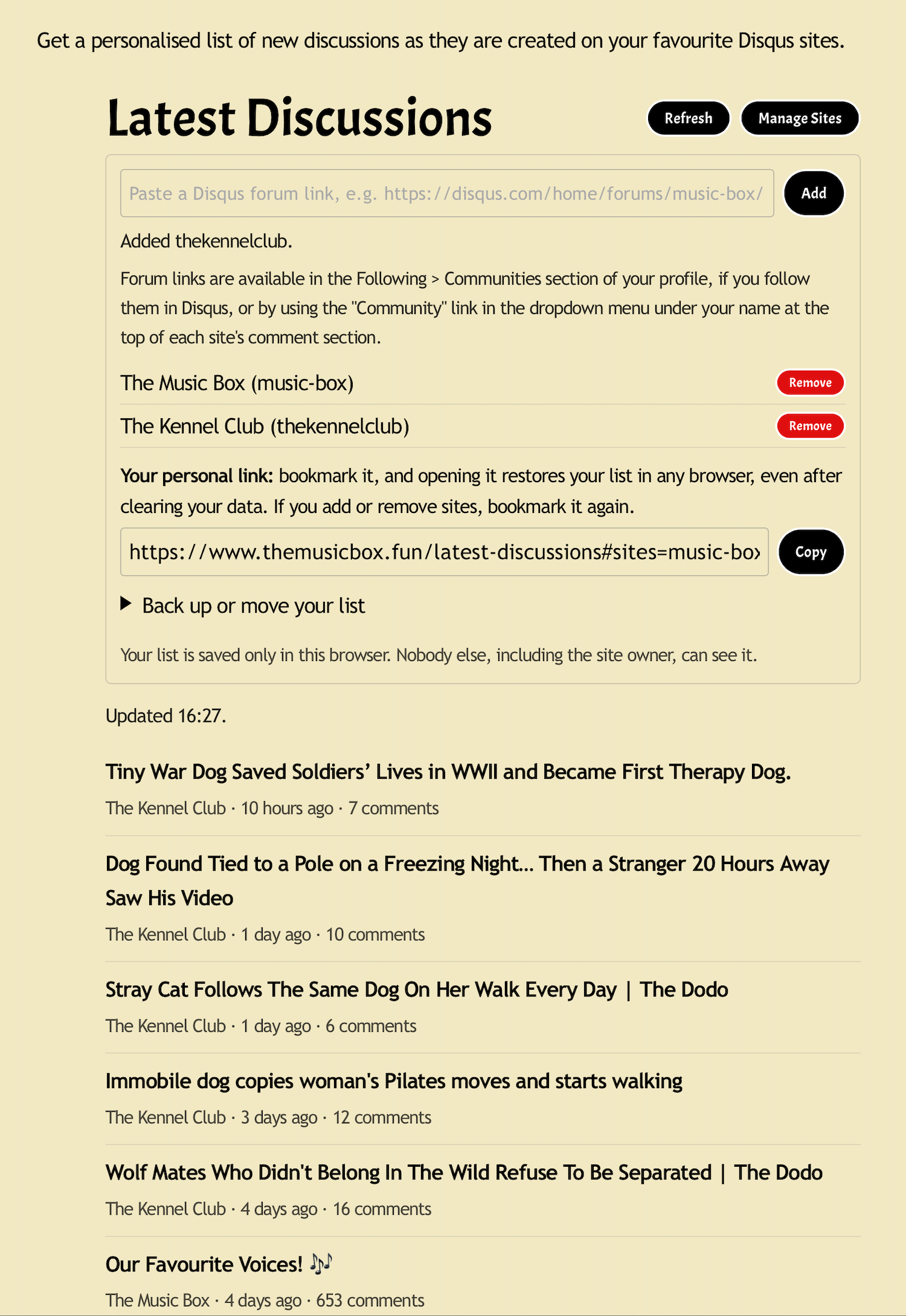
When you have added all of your sites, click/tap “Manage Sites” to close the box and view your list in full.
As new discussions are posted on your chosen sites, they will appear at the top of the the list with a "New" tag on them. You can click/tap on the title of any you wish to view and you will be taken directly to them.
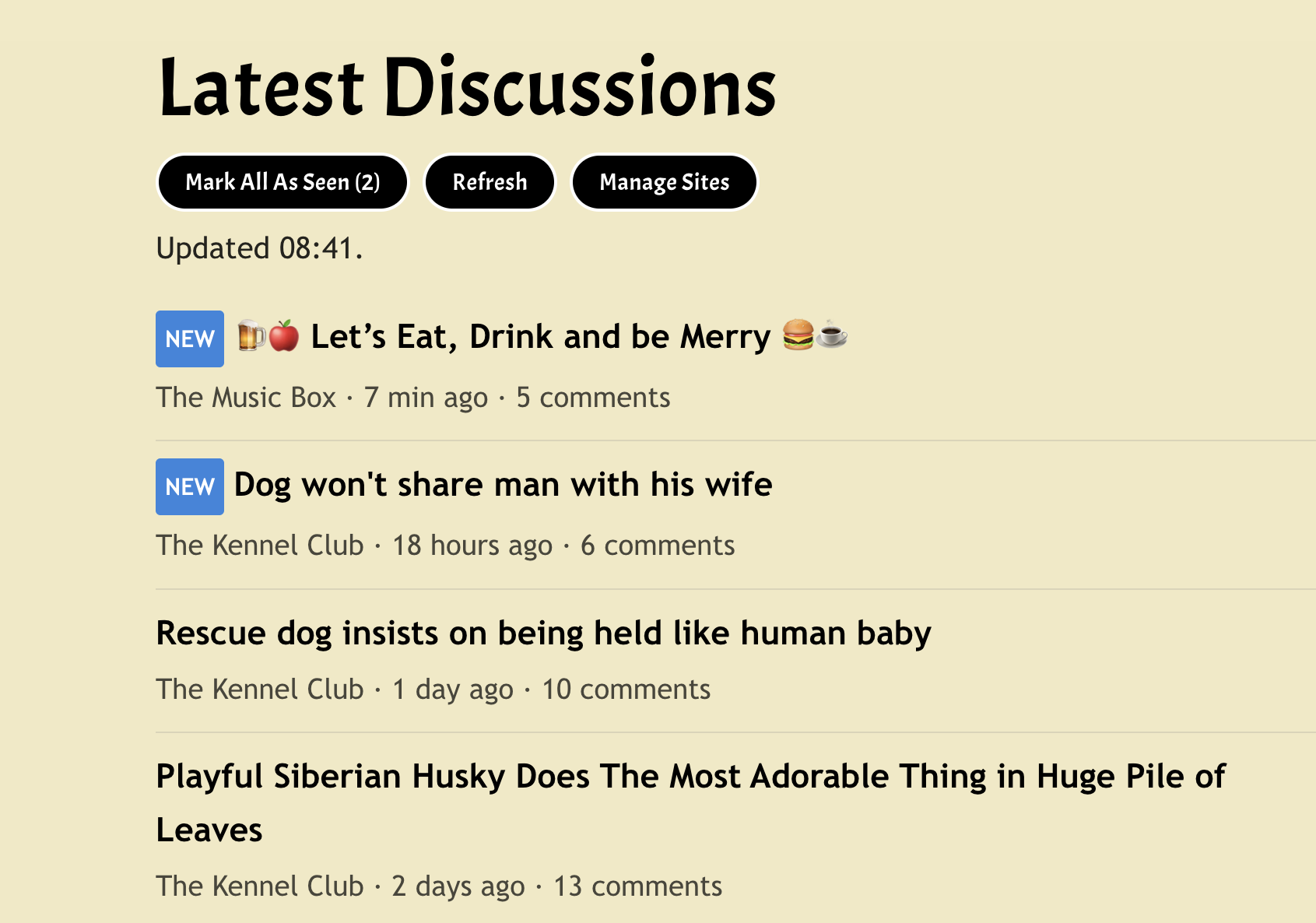
The "New" tag is cleared if you click/tap on the discussion or you can choose to "Mark All As Seen" to clear all the tags.
Backing Up Your List or Moving to a Different Browser
Because the data for your list—the sites you want to get notified for—is saved only in your browser, if you clear web data in your browser, this list will be cleared as well.
To make it easy to restore your list instantly with no need to find the links again, you can bookmark your list with the sites included, so that one click/tap will put it all back in that browser or you can copy it across to another browser.
You can also copy or save the list of your favourite sites so you can easily transfer this latest discussions feature to another browser without having to find all the forum links all over again.
To copy your personalised bookmark, just use the button and save it in your bookmarks folder/bar or copy it across to a different browser.
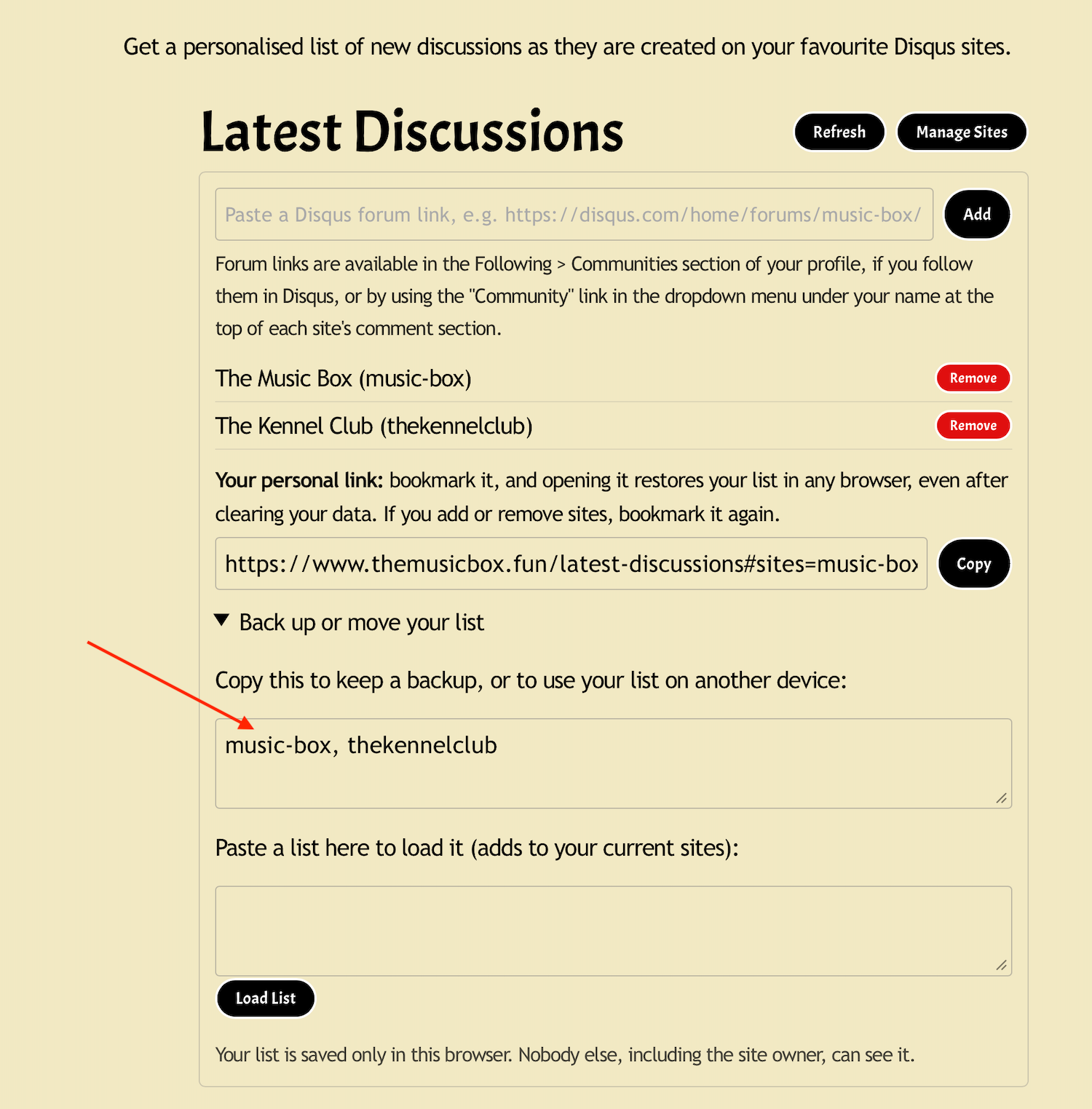
To back up your list or to move your list to another browser, toggle the arrow.
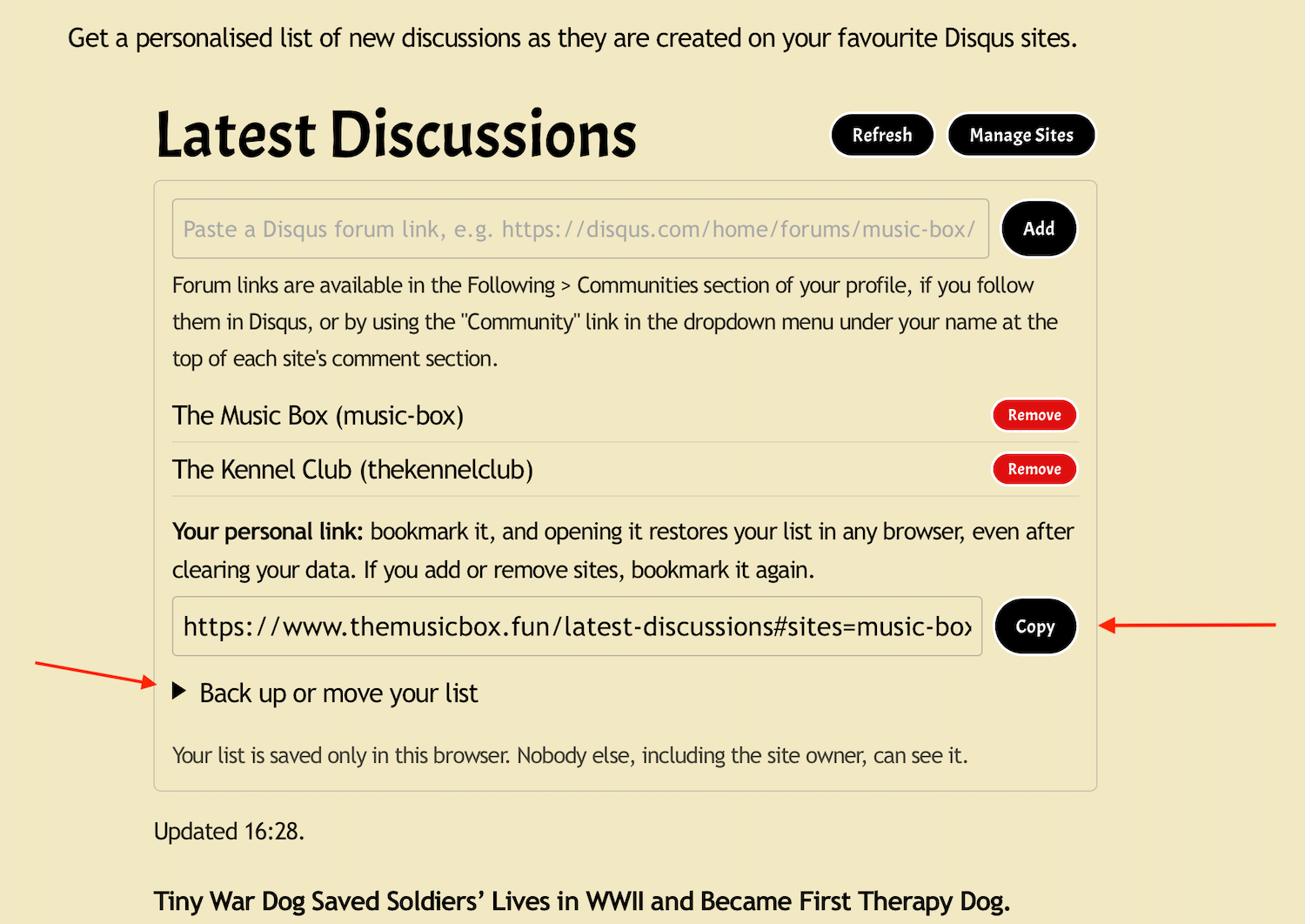
You will then see a comma separated list of your sites, and you can select and copy those to wherever you want to store your list.
On a new browser, open this latest discussions page, and then paste the links in and click/tap "load list"
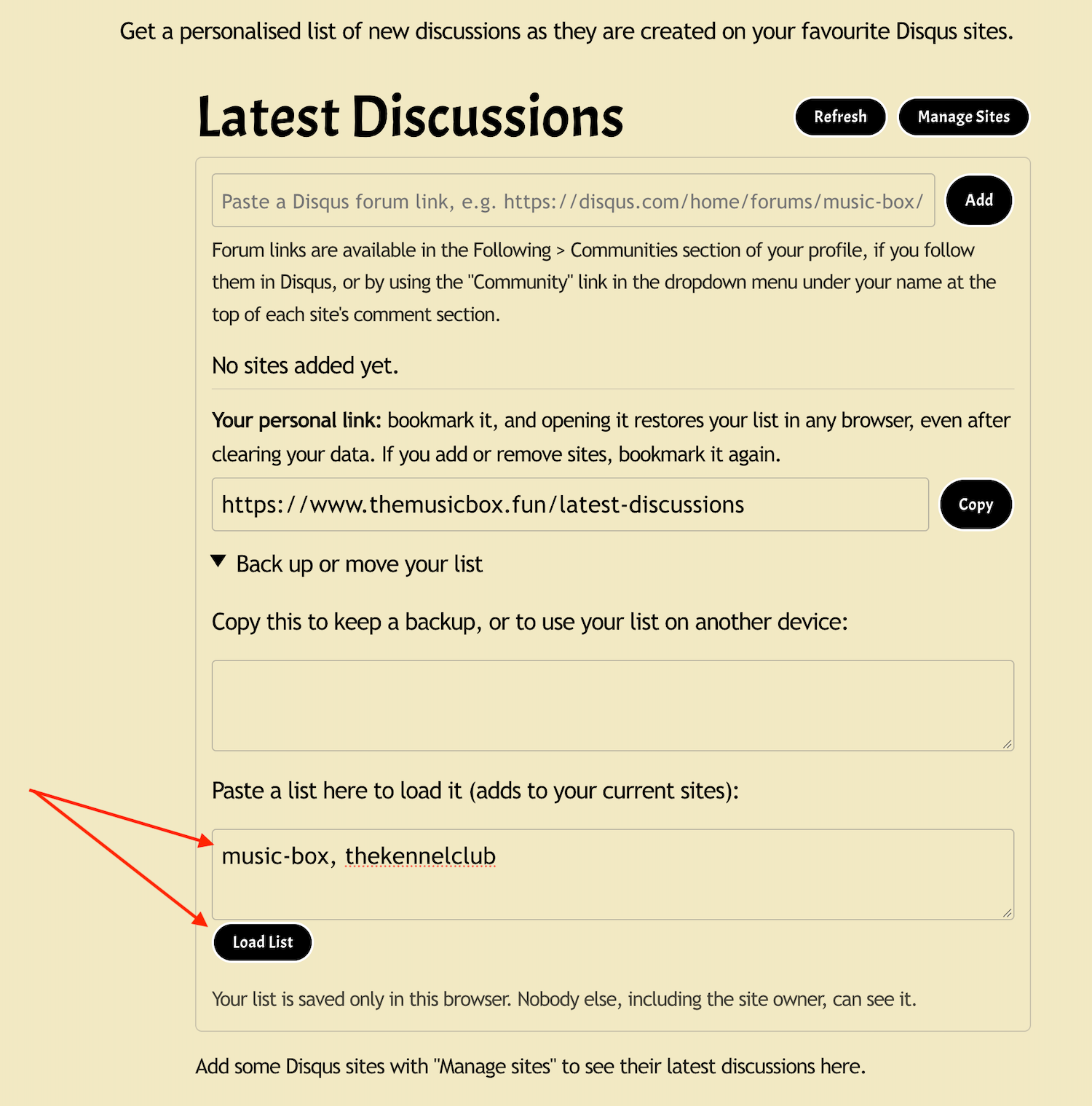
Your personal list will then repopulate in the new browser.